
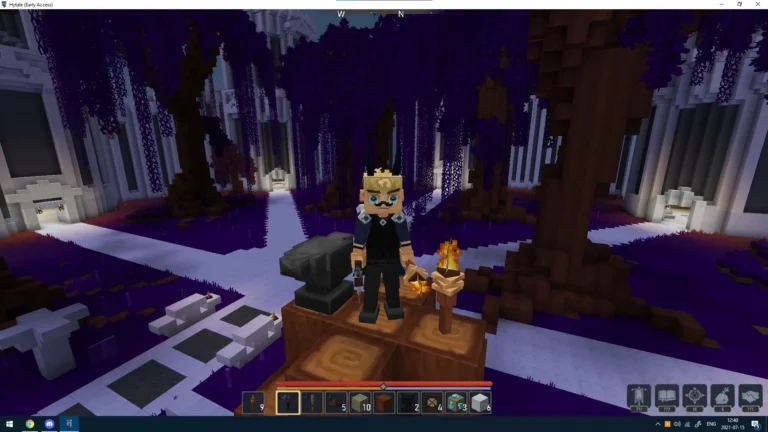
Hytale is a visually rich game filled with large landscapes, detailed builds, and memorable moments. Naturally, you may want to capture these moments using screenshots. While taking screenshots in Hytale is very simple, many players struggle to locate where those screenshots are saved on their computer.
This guide explains exactly where Hytale stores screenshots, how to take them properly, and how to get clean images without clutter on the screen.
Where to Find Hytale Screenshots
Hytale takes care of saving the screenshots you take during the game automatically to your computer. There is no requirement for you to approve the save or select the folder. Hytale is setting up a typical place within your computer’s Pictures directory system.
In order to get to your screenshots, the first thing you need to do is to open This PC on your computer. Then, open your main drive which is usually Local Disk (C:). After that, open the Users folder inside the drive. You will get a list of the user accounts here. Open the folder that corresponds to your Windows username.
Now that you are in your user folder, find the Pictures folder and go inside it. Within Pictures, there would be a folder named Hytale Screenshots. All the screenshots that you have taken during the game would be in that folder.
The full location follows this format: C:\Users\YourUsername\Pictures\Hytale Screenshots
Each screenshot is saved automatically the moment you take it. You do not need to exit the game or open a menu for the file to appear.
How Screenshots Are Saved in Hytale
Hytale preserves screenshots as picture files without any loss of quality. The images are in their original form and thus retain their fine details and vivid colors. Hence, they are perfect for online sharing, processing, or simply keeping as souvenirs.
Each screenshot file gets a name that consists of the date and time when the screenshot was taken. This is very helpful for identifying the exact time a certain photo was taken, particularly if the taking of photographs occurs frequently during an extended gaming session.
The folder creation is automatic, hence you do not have to do it manually. The moment you capture your first screenshot, the folder is created in your Pictures directory.
How to Take Screenshots in Hytale
Hytale allows you to capture a screenshot with just one key. If you are playing the game, just press F12 on your keyboard. When you do so, there will be a short flash on the screen. This flash indicates that the picture was taken properly.
You can take screenshots whenever you want. Everywhere is allowed, from exploration to building, combat, throwbacks, and more. There is no waiting period after taking one picture, so you can snap several photos in quick succession if necessary.
Screenshots are available in both first-person and third-person view modes. You aren’t required to halt the game or access a menu prior to taking a shot.
How to Take Clean Screenshots Without the HUD
Sometimes you may want a screenshot without health bars, hotbars, or other interface elements. Hytale allows you to hide the entire HUD.
To do this, press F8 while in the game. This removes all on-screen interface elements. Once the HUD is hidden, press F12 to take your screenshot. After taking the image, press F8 again to bring the HUD back.
This method is useful if you want clean environment shots, build showcases, or scenic views without distractions. It is also helpful if you plan to share screenshots on social media or forums.
Can You Change the Screenshot Key?
If you are not comfortable using F12, Hytale allows you to change key bindings. You can open the controls or keybind settings in the game menu and assign a different key for screenshots. This is helpful if F12 is already used by another program or feels awkward to press.
After rebinding the key, screenshots will still be saved to the same folder. Changing the key does not affect the screenshot location.
Can You Change the Screenshot Save Location?
Currently, Hytale does not offer an option to change where screenshots are saved. All screenshots go to the Hytale Screenshots folder inside Pictures. If you want them in a different location, you will need to move them manually after they are saved.
You can copy or drag the images to another folder, external drive, or cloud storage if needed. The original files will remain untouched unless you delete them.
Screenshot Support on Controllers
At this stage, screenshots can only be taken using a keyboard. Controller support in Hytale is still limited, and there is no controller button for screenshots. If you are playing with a controller, you will still need a keyboard nearby to capture screenshots.
This may change in future updates, but for now, keyboard input is required.